

Observium Device Sync


Observium Device Sync
Section titled “Observium Device Sync”From V8.4.2, rConfig can import devices from Observium through its REST API. Each Observium device becomes an rConfig device with the right template, credentials and category, and stays in step with Observium on a schedule. The setup follows the same model as the Statseeker V2 setup, and is closest to LibreNMS Device Sync, which started as a fork of Observium.
| Platform | rConfig V8 Support | Auth supported | V2 Status |
|---|---|---|---|
| Observium | V8.4.2+ | API token (Bearer), or username and password | Unverified |
Mental Model: End Goal First
Section titled “Mental Model: End Goal First”The point of setting up a V2 integration is to land in a steady state where rConfig’s device inventory is continuously reconciled against Observium on a schedule, with no operator in the loop. That end state looks like this:
A Scheduled Task of type Integration V2 Job runs the Observium instance in Apply mode on a cron, for example nightly. It runs the same six-stage pipeline you’ll run interactively in this guide, writes any
createandupdatedecisions to rConfig, leaves any conflicts or ambiguous matches in Problem Devices for review, and notifies you on completion.
To get there, you walk a one-time setup and a sanity-check loop:
- Create the integration instance: Observium connectivity and sign-in in the Setup tab. Validate with Test Connection.
- Set up the Device Profiles the synced devices will inherit from, under Inventory → Device Profiles.
- Create device groups in Observium named
rconfig::device_profile::<slug>, so each device knows which profile to use. - Run an Extract Preview to confirm the filters return the right Observium devices.
- Run a Sync Preview to walk the full pipeline (canonicalize → reconcile → decide) without writing.
- Run a Full Sync (Apply) once the preview’s decisions look right.
- Schedule the integration to run on a cron from the rConfig scheduler.
%%{init: {'themeVariables': {'fontSize': '60px'}}}%%
flowchart LR
    A[Create instance<br/>Setup tab] --> B[Test Connection]
    B --> C[Device Profiles<br/>Inventory]
    C --> D[Extract Preview]
    D --> E[Sync Preview]
    E --> F[Full Sync · Apply]
    F --> G[Scheduled Task<br/>recurring sync]

  classDef step font-size:60px,stroke-width:2px;
  class A,B,C,D,E,F,G step;
Prerequisites
Section titled “Prerequisites”Observium:
-
Observium Professional or Enterprise. The API is only in the subscription editions. Community Edition has no API, so this driver can’t connect to it.
-
The API turned on in Observium’s
config.php:$config['api']['enable'] = TRUE;The key is
enable, notenabled. With the wrong key Observium still answersThe API is disabled. -
An Observium user that can see every device you want to import. Observium docs don’t name a level for “read everything”; level 5 (global read) or higher is what rConfig recommends.
-
Network access from rConfig to the Observium web UI.
rConfig V8.4.2+:
- Administrator access.
- At least one Device Profile for the kinds of device you will import.
Choose how rConfig signs in
Section titled “Choose how rConfig signs in”API token (recommended). Recent subscription builds have API tokens under My Profile → API Tokens. Create a read-only token for the rConfig user. rConfig sends it as Authorization: Bearer <token>.
Username and password. Older subscription builds don’t have tokens. rConfig then signs in with HTTP Basic authentication as an Observium user.
Step 1: Create the Integration Instance (Setup Tab)
Section titled “Step 1: Create the Integration Instance (Setup Tab)”1.1 Open the V2 driver picker
Section titled “1.1 Open the V2 driver picker”Navigate to Platform → Integrations. Scroll to the Device Sync section and click + Add Driver under V2 Drivers. The picker shows every V2 driver split into Configured Drivers and Not Configured Yet.
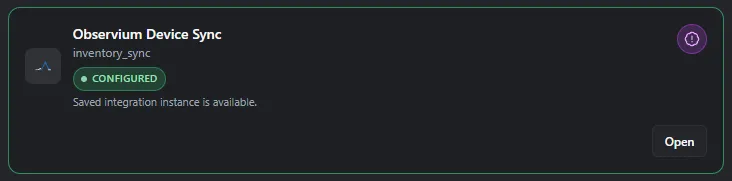 V2 driver picker. Shown with Observium highlighted.
Each card carries the driver’s verification badge (Unverified for Observium), plus a link to its docs page. Click the Observium card.
1.2 Fill in the Setup tab
Section titled “1.2 Fill in the Setup tab”The driver picker drops you straight into the instance Detail page on the Setup tab.
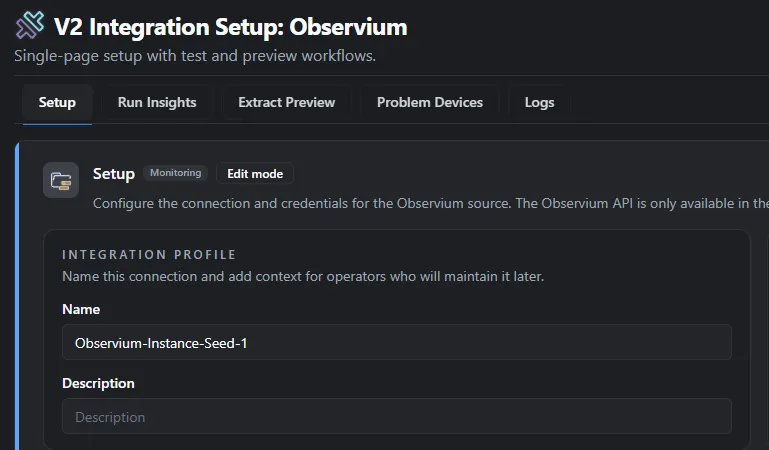 Observium Setup tab with Connectivity and Authentication sections expanded.
Connectivity
| Field | Default | Notes |
|---|---|---|
| Base URL | required | Root URL of the Observium web UI, for example https://observium.example.com. rConfig adds /api/v0 itself. |
| Timeout (Seconds) | 60 |
Time allowed for each request. Range 1 to 600. |
| Verify TLS Peer | on |
Leave on in production. |
| Verify TLS Hostname | on |
Leave on in production. |
| Include Disabled Devices | off |
When off, devices disabled in Observium are skipped. Ignored devices are always included. |
| Import Device Groups as Tags | off |
When on, Observium device group names become rConfig tags on Apply. |
Authentication
| Field | Shown when | Notes |
|---|---|---|
| Authentication Mode | always | API Token or Username and Password. |
| API Token | API Token | A read-only token for the rConfig user. |
| Username | Username and Password | Observium user with global read access. |
| Password | Username and Password | That user’s password. |
1.3 Test the connection
Section titled “1.3 Test the connection”Click Test Connection in the action bar at the top of the page.
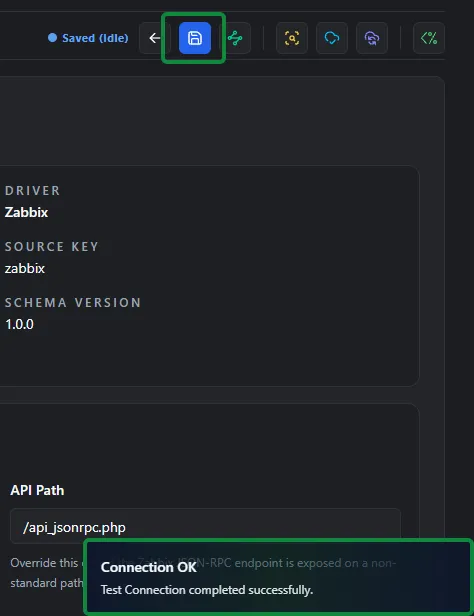 Setup tab after a successful Test Connection. Shown with the Zabbix driver. The Observium screen is the same.
rConfig asks Observium for one device and reports how many devices the user can see, for example Connection successful (412 devices visible). Common failures:
| What you see | Most likely fix |
|---|---|
The Observium API is disabled |
Set $config['api']['enable'] = TRUE; in config.php. Check you are on Professional or Enterprise. |
rejected the credentials (HTTP 401) |
Wrong token, or wrong username and password. Unverified: the exact status code Observium uses here. |
blocking logins after too many failed attempts |
Wait for the time shown, then fix the credentials before testing again. |
can see no devices |
The user’s level is too low. Use a user with global read (level 5) or higher. |
did not return an Observium API response |
The Base URL points somewhere else, such as a login page or proxy. |
1.4 Save
Section titled “1.4 Save”Click Save. The save indicator in the action bar flips to Saved once persisted.
You now have an Observium integration instance, but no device has a Device Profile yet. Do not run a preview yet. Move to Step 2.
Step 2: Give Each Device a Device Profile
Section titled “Step 2: Give Each Device a Device Profile”Every imported device needs a Device Profile, which sets its vendor, category, template and credentials. Devices without one go to Problem Devices instead of being created.
2.1 Open the Device Profiles page
Section titled “2.1 Open the Device Profiles page”Navigate to Inventory → Device Profiles.
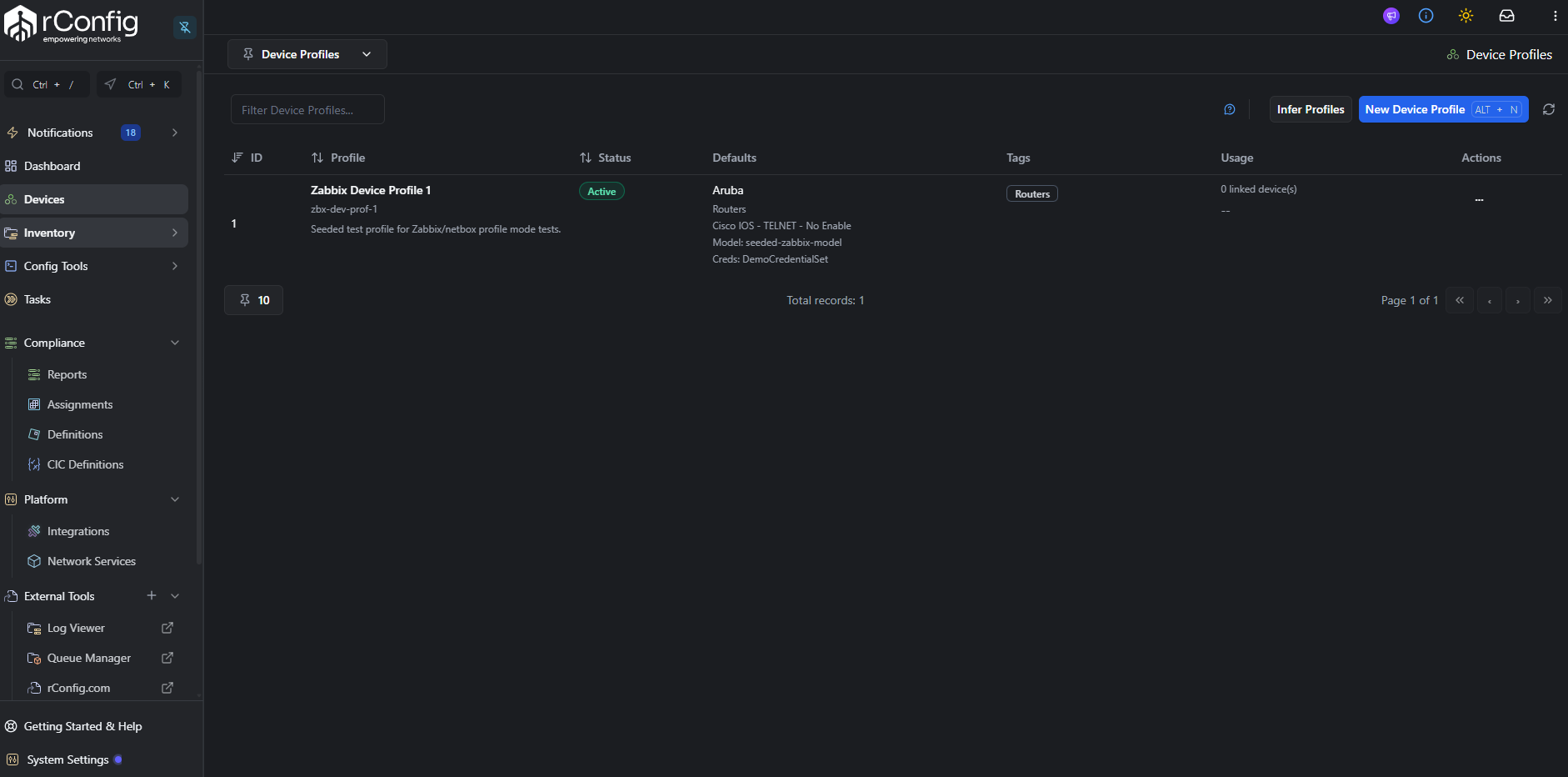
2.2 Create a Device Profile per device class
Section titled “2.2 Create a Device Profile per device class”For each device class you want to sync (for example Cisco IOS Core Routers, Juniper Edge Routers), click New Device Profile and fill in:
- Name: human-readable.
- Slug: the value your Observium device group names will reference.
- Vendor, Category, Template, Credential set: standard rConfig device classification.
- SNMP group, Vector agent, default tags, default model / prompt patterns: optional.
2.3 Create profile device groups in Observium
Section titled “2.3 Create profile device groups in Observium”Create one Observium device group per profile, named with the rconfig::device_profile:: prefix and the profile slug:
rconfig::device_profile::cisco-ios-corerconfig::device_profile::juniper-junosObservium groups can be rule-based, so a group matching OS ios keeps every IOS device in that profile as devices are added.
- The prefix is not case-sensitive, but the slug after it must match the Device Profile slug in rConfig.
- If a device is in more than one profile group, the group whose name sorts first wins.
- Only groups of devices count. Port or sensor groups with the prefix are ignored.
Unverified: Observium’s documentation lists the /groups/ endpoint and its filters but shows no example response. rConfig reads the group ID and name from group_id/id and group_name/name, and fetches each group’s members through the documented group_id device filter. If profile groups are not picked up, send the output of /api/v0/groups/?entity_type=device to rConfig support.
Step 3: Filters (Optional)
Section titled “Step 3: Filters (Optional)”The Filters card on the Setup tab limits which devices are imported. Leave every field empty to import all devices.
| Filter | Matches |
|---|---|
| Device Groups | Devices in any of the listed groups, by name (not case-sensitive) or ID. |
| OS | The Observium os value exactly, for example ios, iosxe, junos. |
| Device Types | The Observium device type, for example network or firewall. |
| Location Contains | Any part of the device’s location text. |
Values in one field are combined with OR, and different fields with AND. A single OS or device type is sent to Observium as a filter; everything else is checked by rConfig after the devices are fetched.
Step 4: Run an Extract Preview
Section titled “Step 4: Run an Extract Preview”Switch to the Extract Preview tab (amber download icon in the action bar).
Extract Preview hits Observium exactly the way a real sync would, but stops the moment the devices come back: no canonicalize, no reconcile, no writes.
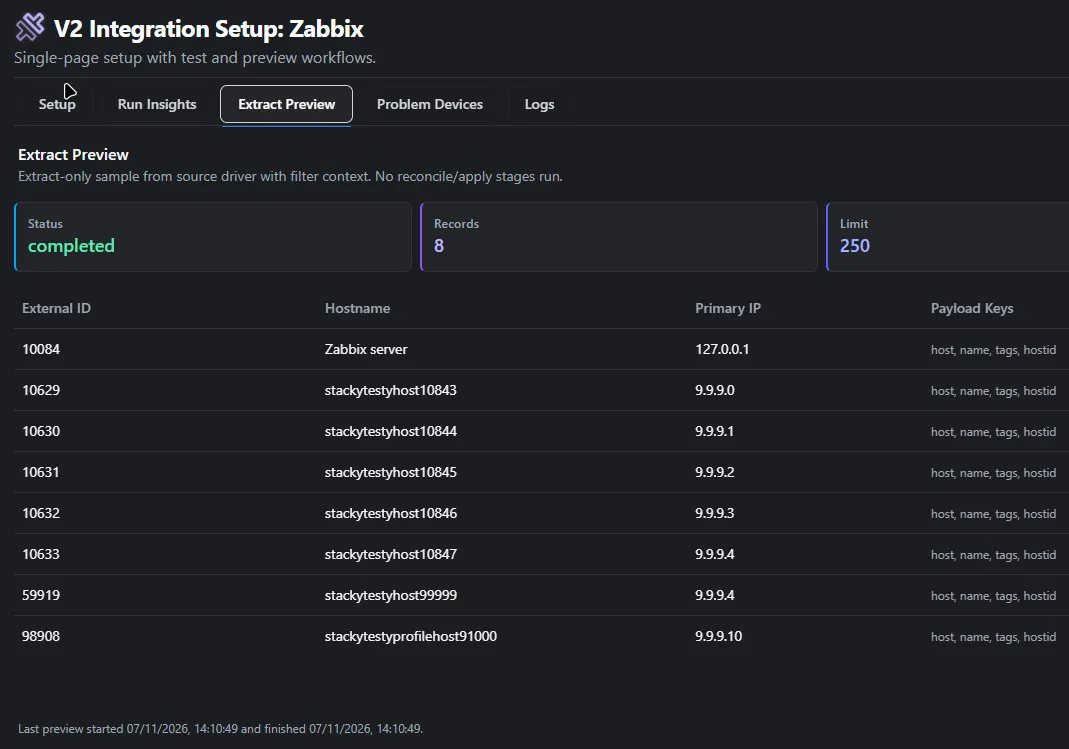 Extract Preview tab with summary cards and result table. Shown with the Zabbix driver. The Observium screen is the same.
Check the hostname and IP columns, and open a row’s Details hover to see the payload. Observium returns "" or - for empty fields; rConfig treats both as empty.
For the full anatomy of this tab, see the Extract Preview Tab reference.
Step 5: Run a Sync Preview
Section titled “Step 5: Run a Sync Preview”Click Preview Sync in the action bar (sky icon). Sync Preview runs the complete pipeline through decide and stops without writing.
Switch to the Run Insights tab to inspect the result.
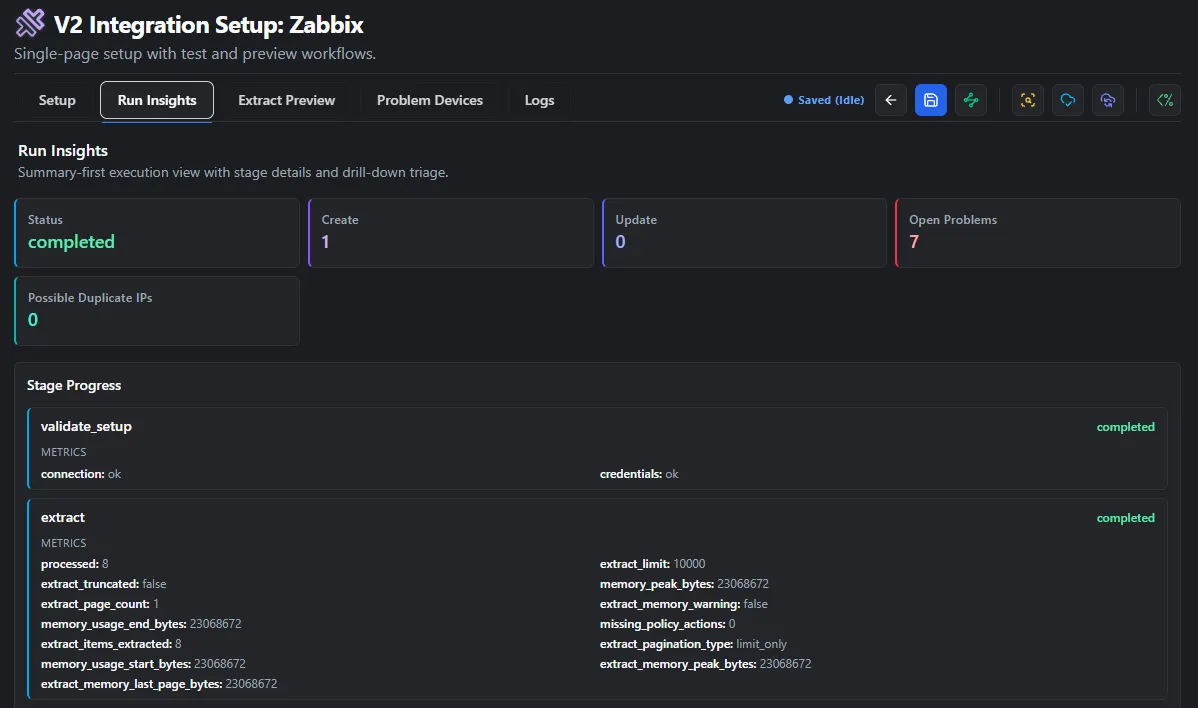 Run Insights tab populated after a Sync Preview. Shown with the Zabbix driver. The Observium screen is the same.
The most-watched stage metrics are:
extract.items_extracted: should match the Extract Preview count.canonicalize.invalid: a high count usually means devices without a profile group.reconcile.ambiguous: non-zero means more than one rConfig device matches the same Observium device.
If Open Problems is greater than zero, switch to the Problem Devices tab and triage the rows.
For the full anatomy of these tabs, see the Run Insights Tab reference and Problem Devices Tab reference.
Step 6: Run a Full Sync (Apply)
Section titled “Step 6: Run a Full Sync (Apply)”When the Sync Preview decisions look correct and Open Problems is at an acceptable level, click Full Sync in the action bar (indigo icon).
Full Sync re-runs the full pipeline and finishes by executing the apply stage:
- Creates new devices for each
decision = create. - Updates existing devices for each
decision = update. - Assigns the resolved Device Profile to each affected device.
- Adds Observium device group names as tags when Import Device Groups as Tags is on.
- Updates
integration_device_links(first_seen,last_seen). - Schedules an initial configuration backup for newly created devices.
Run Insights tab after a Full Sync. Shown with the Zabbix driver. The Observium screen is the same.
Re-check Problem Devices after Apply: Apply does not auto-resolve ambiguous_match or conflict rows; those still need a human.
On a device imported from Observium, the device page has an Open in Observium button that goes to /device/device=<device_id>/. Unverified: this is Observium’s long-standing device URL; it has not been checked on a current subscription build.
Step 7: The Debug Console
Section titled “Step 7: The Debug Console”For any of the runs above, you can swap the action-bar button for the Open Debug Console button (shimmer icon). The Debug Console runs the same Artisan command synchronously and streams its native stdout/stderr into a modal:
 Debug Console modal mid-run. Shown with the Zabbix driver. The Observium screen is the same.
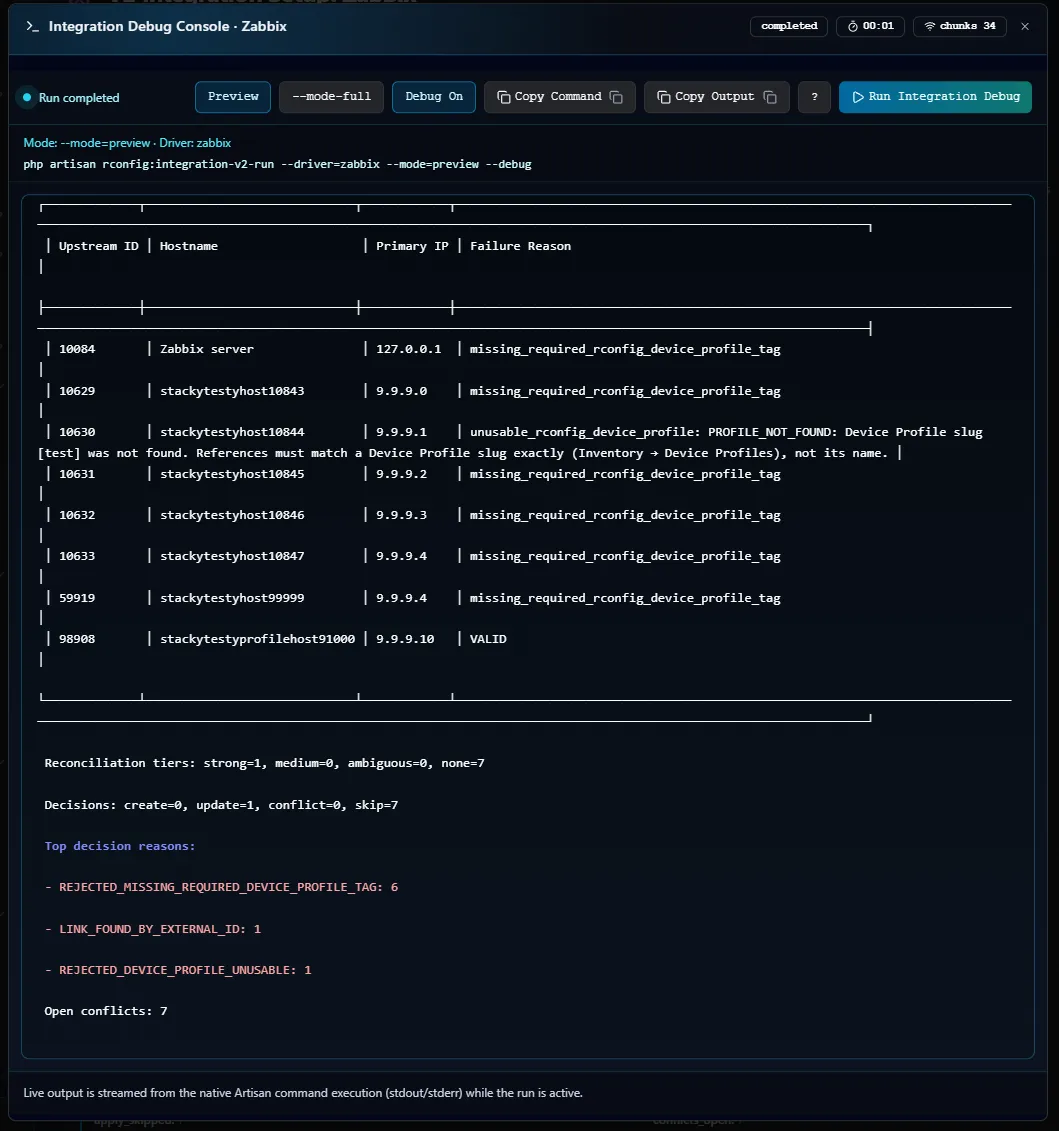 Debug Console modal after a run completes. Shown with the Zabbix driver. The Observium screen is the same.
For the full anatomy of the dialog, see the Debug Console reference.
Step 8: Schedule the Sync
Section titled “Step 8: Schedule the Sync”Once a manual Full Sync completes cleanly, schedule it. Navigate to Tasks and click New Task. Choose task type Integration V2 Job, pick the Observium instance, choose Apply mode, and set the cron schedule.
A common production pattern:
- Hourly Preview: drift detection only, no writes. Surfaces new Problem Devices fast.
- Nightly Apply: commits real changes during the maintenance window.
CLI Reference
Section titled “CLI Reference”# Sync Preview (does not write)php artisan rconfig:integration-v2-run --driver=observium --mode=preview
# Full Sync with debug outputphp artisan rconfig:integration-v2-run --driver=observium --mode=apply --debug
# Queue an async run by explicit instance IDphp artisan rconfig:integration-v2-run 12 --mode=apply --queueSee the V2 Overview for the full option list.
Driver Reference
Section titled “Driver Reference”Fields the driver reads
Section titled “Fields the driver reads”| rConfig field | Observium field |
|---|---|
| External ID | device_id |
| Hostname | hostname. When that is an IP address, sysName is used instead. |
| Primary IP | ip, then hostname if it is an IP address. |
| Model | hardware |
| Serial | serial |
| Vendor | Observium’s vendor field. When it is empty, worked out from os. Shown in previews only; the device’s vendor comes from its Device Profile. |
| Profile / Tags | Device group membership, as described in Step 2. |
Observium returns every value as text and uses "" or - for empty fields. rConfig treats both as empty.
Paging
Section titled “Paging”rConfig asks for 1,000 devices per page (pagesize, pageno) and stops at a short page or when it reaches the total Observium reports. If a page comes back the same as the one before, the build is ignoring the paging parameters, and the sync stops with non-advancing page instead of looping.
What rConfig never stores
Section titled “What rConfig never stores”rConfig asks Observium for a fixed list of fields that leaves out SNMP credentials, and removes any snmp_* field that comes back anyway. Unverified: Observium’s documentation doesn’t say whether the API hides SNMP credentials on its own, so rConfig assumes it doesn’t.
Reconciliation and missing devices
Section titled “Reconciliation and missing devices”- Strong match: by the Observium
device_idalready linked to this instance. - Medium match: hostname and primary IP both unique in rConfig; sent to Problem Devices for review.
- Missing upstream: the default is
disable_link_only. When a device disappears from Observium, rConfig disables the link but leaves the device.
Troubleshooting
Section titled “Troubleshooting”- Test Connection fails. Use the failure table in 1.3 Test the connection.
- Fewer devices than expected. Check the user’s level, Include Disabled Devices, and the filters.
- Devices land in Problem Devices with no profile. The device is not in any
rconfig::device_profile::group, or the slug doesn’t match an active Device Profile. If groups exist but are never picked up, send the output of/api/v0/groups/?entity_type=deviceto rConfig support (see the Unverified note in Step 2). - Sync stops with
non-advancing page. The Observium build ignores the paging parameters. Send the build version to rConfig support. - Reconciliation produces ambiguous matches. Two rConfig devices share the same hostname or primary IP. Resolve in Problem Devices by picking the correct target, or de-duplicate the device list.